Installing Texture Packs
Texture packs are a type of asset mod that change the appearance of parts in Spaceflight Simulator (SFS) by replacing or adding new textures. Installing texture packs is a straightforward process that involves placing the mod files in the correct directory within the SFS game folder.
They come in the form of .zip files that contain the following structure:
MyTexturePack.zip/
  Color Textures/
  Shape Textures/
  Shadow Textures/
  pack_info.txt (or pack_info.json)
First, you need to find your SFS game folder. The location of the game folder varies depending on your platform. Refer to the Mod Installation guide for detailed instructions on locating your game folder.
Once you have located your SFS game folder, follow these steps to install a texture pack:
- Place the entire
.zipfile of the texture pack into theMods/Custom Assets/Texture Packsfolder. - Extract the contents of the
.zipfile directly into theModsfolder. Ensure that the folder structure is maintained as shown above. - Launch Spaceflight Simulator. The game should automatically detect and load the texture pack.
- Enable the texture pack in the game's settings menu under the "Mods" section.
- Apply the textures from the texture pack to parts in the build menu.
Using Texture Packs
To use a texture pack in Spaceflight Simulator, follow these steps:
- Open the build menu and select a part that supports texturing.
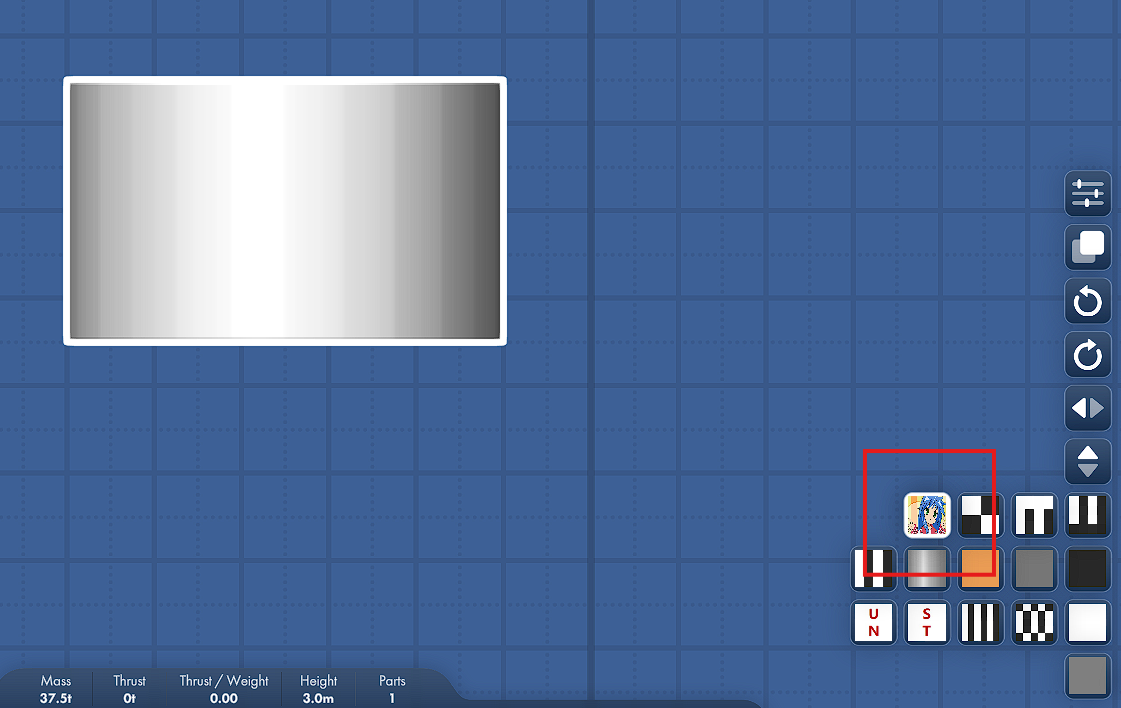
- In the bottom right corner, two buttons will appear: one for color textures and another for shape textures.
- The color texture button will be on top of the shape texture button. Both will have an icon representing the currently selected texture.
- Click on the color texture button to open a menu displaying all available color textures from the installed texture packs.
- Select the desired color texture from the list to apply it to the part.
- Similarly, click on the shape texture button to open a menu displaying all available shape textures.